How to Choose a TikTok Video Downloader for iPhone
15 min read · Updated: 2026-11-29
The best TikTok video downloader for iPhone is the method that saves a clip you are allowed to keep, works reliably in iOS, and gives you a playable file at the quality you need. Start with TikTok’s own save option when it is available; otherwise, compare reputable web tools and apps by their privacy practices, format choices, and ease of saving to Photos or Files.
Before downloading, check the creator’s settings and respect copyright, consent, and any rules that apply to the clip. A visible download button, a working link, or a successful save does not by itself grant permission to repost or reuse someone else’s video.
The steps below explain what downloaders do, how to check a clip, and which iPhone methods and file settings to consider. They also cover practical checks that help prevent unwanted permissions, poor playback, and low-quality copies.
- Start with TikTok’s built-in save option when it is available and permitted.
- Check creator settings and your intended use before saving or sharing a clip.
- Compare web tools and apps by their permissions, privacy practices, and save location.
- Choose a compatible video format, then test playback and quality on your iPhone.
What a TikTok Video Downloader Does
From Link to Video File
A TikTok downloader takes a video link and helps turn the clip into a file your iPhone can store or play. Depending on the service, it may fetch the available video stream, offer a format choice, and provide a download button rather than saving directly from TikTok.
- Open the TikTok clip and use Share to copy its link.
- Open a downloader you trust and paste the link into its input field.
- Review the available video, format, and quality before proceeding.
- Save the file to Photos or Files, then play it to check the result.
The usual workflow is simple: copy a clip’s share link, paste it into the downloader, then choose a listed file or quality. Some tools return a video with TikTok’s visible watermark, while others may offer different versions; check the preview and terms instead of assuming every option is authorized or identical.
If a downloader quotes a paid feature in a foreign currency, anlık döviz fiyatları can help you understand the exchange-rate context before judging whether the stated cost fits your budget. Treat that as a budgeting check, not proof that the tool is trustworthy or that its charge is the final amount.
Downloads Versus Bookmarks
A downloaded video is a file stored on your device, while a TikTok favorite or saved item is a shortcut within your account. The distinction matters when you expect to watch a clip offline: a bookmark may still depend on the post remaining available and on your account having access.
A local file can be played from Photos or Files without reopening the original post, but it uses device storage and may not retain captions, comments, or other TikTok features. A saved item keeps the clip connected to its original context, which can be more useful when you simply want to find it later.
Choose the approach that matches your purpose rather than collecting duplicate copies by default. Use a bookmark for easy return to a post, and consider a file only when offline playback or personal archiving is appropriate and the creator’s settings allow it.
Check the Clip and Your Permission to Save It

Review Creator Settings
Check whether TikTok offers a download option on the clip before turning to another method. A creator may disable downloads, and that choice is a clear reason not to use a workaround to copy or distribute the video.
Permission also depends on how you plan to use the file, not just whether you can save it. Keeping an allowed clip for private offline viewing differs from reposting it, editing it into another work, or using it commercially, which may require the creator’s permission.
If you are comparing a tool’s quoted price in dollars with your own budget, dolar TL çevirici can help estimate its value in Turkish lira. That conversion does not establish permission to download a clip or confirm that the tool’s pricing and payment terms are safe.
Check the Link First
Use the share link for the specific clip you intend to save, and check that it opens the correct post before pasting it elsewhere. A copied link can point to a profile, a different video, or a private post that a downloader cannot access.
Private or restricted content should stay within the access limits set by its creator. Do not enter your TikTok password into a third-party downloader to reach it; a legitimate link-based tool should not need your account credentials to process a public clip.
If the clip includes another person, consider whether saving or sharing it could expose personal information or violate their expectations. When the intended use goes beyond private viewing, ask the creator or rights holder first and keep any permission clear.
- Confirm the link opens the intended video.
- Respect private and restricted posts.
- Never provide your TikTok password to a downloader.
Choose a Download Method for iPhone
Use TikTok’s Save Option
When the creator allows downloads, TikTok’s built-in save option is usually the simplest place to start. Open the clip’s sharing controls and choose the available save command; iOS then stores the video in Photos, where it can be checked alongside your other media.
This route avoids copying the link into another service and reduces the chance of landing on a misleading download page. It may not appear for every post, and the saved version may include a watermark or other limits, so verify the result rather than expecting an identical file in every case.
After saving, open Photos and play the clip from beginning to end. If you need the file in a folder instead, use the iOS share sheet when available to save or move it into Files, then confirm that the file opens there.
- Open the clip’s sharing controls.
- Choose the save option if it is offered.
- Check playback in Photos before moving or sharing the file.
| Method | Good for | Check before using |
|---|---|---|
| TikTok save option | Saving an allowed clip to Photos | Option may be unavailable |
| Safari web tool | Avoiding an extra app install | Watch for misleading buttons |
| Downloader app | A dedicated saving interface | Review permissions and export options |
Compare Web Tools and Apps
A web downloader can work in Safari without installing a dedicated app, while an app may offer a more direct interface or file organization. Neither format is automatically safer: assess what it asks you to do, what permissions it requests, and whether its controls are clear.
For a web tool, paste only the public clip link and watch for deceptive buttons, extra tabs, or prompts to install a profile. For an app, review its privacy details and requested access; a video-saving task should not require unrelated access to contacts, messages, or precise location.
Think about where the file will go before choosing a method. A browser may send the result to Files first, while an app may place it in its own library; check that you can export or play the video without creating an account or granting unnecessary access.
For straightforward iPhone playback, choose a common video format such as MP4 when the downloader offers a clear format choice.
Select a Format and Resolution That Fits
Choose a Compatible Format
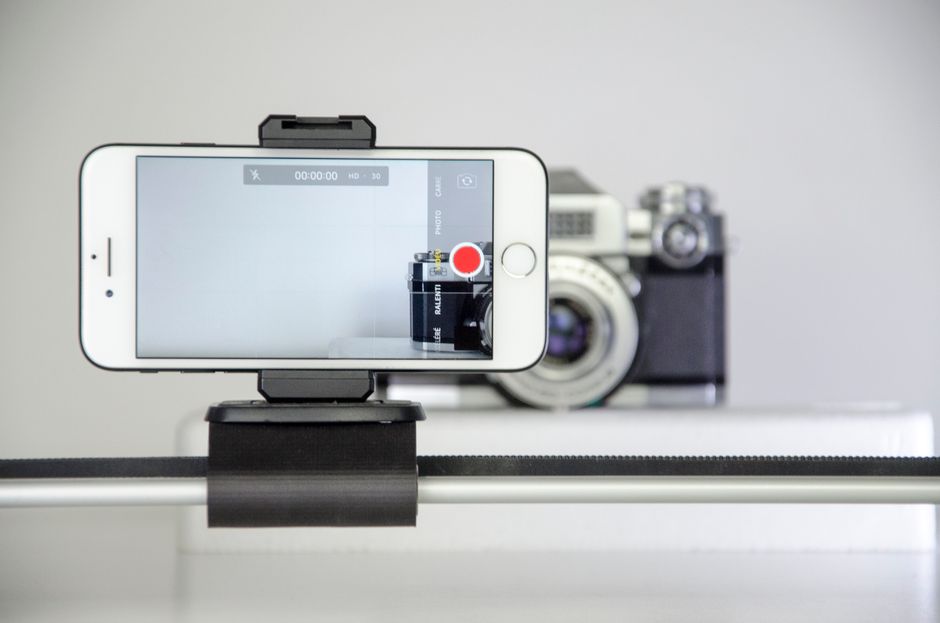
For straightforward iPhone playback, choose a common video format such as MP4 when the downloader offers a clear format choice. An unfamiliar extension may need another player or conversion, adding steps and sometimes reducing quality, so do not select it just because it appears first.
Keep the file as a video when you want to watch it in Photos or Files; an audio-only option will not preserve the picture. If the downloader offers a separate audio file, check its purpose carefully and avoid it when the goal is to save the complete TikTok clip.
After saving, check the filename extension and test the file in the app where you plan to use it. If playback fails, return to the source and choose a more widely supported format rather than installing an unknown converter or granting broad access to your media library.
Match Resolution to Use
Choose the highest available resolution only when you need the extra detail and have room to store the larger file. For casual phone viewing, a lower available resolution may be adequate, while a clip intended for a larger screen benefits from retaining as much source detail as the tool can provide.
A downloader cannot restore detail that was absent from the original upload. If the source is blurry or compressed, selecting a higher output setting will not make it genuinely sharper; compare the preview with the saved file to spot added blur, cropping, or unexpected changes.
Consider the screen and connection where you will watch the clip, as well as available storage. Keep the original dimensions when possible, avoid unnecessary conversion, and test a short playback before saving several files with the same settings.
Understand Any Price Before Paying
Read the Offer Carefully
Before paying, confirm whether the displayed amount covers a one-time download or a recurring subscription. An app may offer a short trial that automatically converts to a paid plan, while a web tool may charge per download or ask for a separate fee to remove limits. Check the billing period and renewal terms before tapping a confirmation button.
- Mistake: treating a trial as free indefinitely; check its renewal date and cancellation terms.
- Mistake: comparing a monthly price with a one-time fee; compare the same billing period.
- Mistake: paying before checking features; confirm the formats and limits first.
Look for the total cost, not just a prominent introductory price. If a plan renews, note how often it renews and where you would cancel it; deleting an app does not necessarily end a subscription. On an iPhone, review the payment confirmation and subscription details so you know which service will bill you.
A downloader that asks for payment before showing its supported formats or download steps makes comparison difficult. Check that the offer explains what you receive, such as saved video files, available resolution choices, or batch features. If essential terms are missing or unclear, do not enter payment details until you can verify them.
Check Renewal and Cancellation
Use the iPhone’s subscription settings to see whether an app-based plan is active and when it renews. If you signed up on a website, cancellation may instead be managed through that service’s account page. Keep the confirmation email or receipt so you can identify the plan and billing provider if a charge needs checking.
Check whether cancellation stops future renewals or also removes access immediately. That difference matters if you have already saved clips and still need time to move them into Files or Photos. Avoid relying on a vague promise of easy cancellation; look for clear account instructions before committing to a recurring plan.
A payment request that appears inside an unfamiliar page deserves extra care. Confirm the service name, amount, and billing period on the final payment screen, and stop if they differ from the offer you reviewed. Never share your Apple Account password or a verification code with a downloader to complete a purchase.
Compare Costs Shown in Another Currency
Estimate the Local Equivalent
When a downloader lists a fee in US dollars, check its approximate value in your own currency before deciding whether the plan fits your budget. The amount shown by your bank or card issuer can differ because the final charge may include exchange-rate adjustments or fees. Treat an online conversion as an estimate, not a guaranteed checkout total. A useful resource on this topic: bugün dolar kaç TL.
- ☐ Confirm the listed currency and billing interval.
- ☐ Check the estimated local-currency equivalent.
- ☐ Allow for possible card conversion or foreign transaction fees.
- ☐ Compare the same features before choosing a plan.
If you need to understand a dollar price in Turkish lira, сегодня? No—check бүгүн dolar kaç TL before paying, then compare that estimate with the amount your card provider says it may charge. This helps put a foreign-currency offer into context without assuming the displayed conversion includes your bank’s fees or the service’s billing terms.
Compare equivalent plans over the same period and with the same features. A low-looking amount may apply only to a trial or a limited offer, while another price may cover a full billing cycle. Write down the currency, renewal interval, and included features before comparing, so a currency difference does not distract from a difference in what you receive.
Account for Conversion Changes
Currency values can change between the time you compare a plan and the time a card charge is processed. That means a converted estimate is useful for judging scale, but it may not match the amount on your statement exactly. For a small recurring service, consider whether the possible variation and any card fees are acceptable to you.
Your card issuer may use its own exchange rate or apply a foreign transaction fee. Check your card’s terms rather than assuming the downloader’s displayed conversion is the final amount. If the checkout offers a choice between paying in the service’s currency and your local currency, read the shown totals and fees before selecting either option.
Keep a screenshot or record of the offer and the checkout currency if the final charge looks different. Compare the receipt with your card statement and check whether the difference comes from conversion, a renewal, or an added fee. If the explanation is unclear, contact the seller or card provider through their official support channels.
Check the Amount at Checkout
Verify the Final Total
Pause at the final payment screen and check the amount, currency, billing interval, and service name together. The total can differ from an earlier offer if taxes, add-ons, or a longer plan have been included. Do not confirm until the checkout details match the option you intended to buy.
On an iPhone, an in-app purchase should show a system confirmation before the payment completes. Read its price and renewal terms rather than tapping through automatically. If a website opens in Safari, confirm that its checkout domain belongs to the service you chose and that the payment form does not request unnecessary account credentials.
Save the receipt after paying and compare it with the offer you accepted. A receipt can help distinguish a one-time purchase from a recurring subscription and identify the company that processed it. If the charged amount differs, first check for taxes, conversion, or a renewal; then ask the relevant billing provider for clarification.
Stop at Unclear Requests
Do not complete checkout if the payment page changes the plan or price without explaining why. Return to the offer and check whether you selected a different billing period or feature by mistake. If the total still does not make sense, leave the page and contact support using details found on the service’s official site.
A downloader should not need your TikTok password simply to save a publicly viewable clip through a link-based workflow. Treat requests for passwords, recovery codes, or unrelated personal information as a reason to stop. Never send payment card details through a direct message or an unverified form shared outside the service’s normal checkout.
Check whether the payment is being handled by Apple, a known payment provider, or the service itself. Each route can have different cancellation and refund procedures, so identify the billing party before you need help. If a charge appears that you did not approve, use your card issuer’s official app or support number to review it.
Protect Your Files and Avoid Common Problems
Keep Downloads Organized
Save downloaded clips to a location you can find again, such as a clearly named folder in Files. Use a descriptive filename or folder label to separate saved videos from other media, especially when you download several clips in one session. Before removing a browser tab or app, confirm that the file has finished downloading and opens successfully.
- Confirm a download is complete before closing the page.
- Keep clips in an easy-to-find folder.
- Check playback after moving a video.
Check available iPhone storage before saving a large video or several clips. If space is tight, remove files you no longer need or choose a smaller resolution when that option is available. Do not assume that clearing a browser’s history will preserve a download; verify the video is in Files or Photos first.
Use a consistent naming habit that helps identify the creator or subject without exposing private details in a shared folder. If you move a clip from Files to Photos, open it there to make sure playback works. Keeping the original download until the copied version is confirmed gives you a straightforward way to recover if the move fails.
Troubleshoot Playback and Safety
If a saved clip will not play, check that the file extension and format are supported by the app you are using. A download may be incomplete if the file size is unexpectedly small or playback stops early. Try downloading it again over a stable connection, then test the new copy before deleting the first one.
A video that plays in a browser but not in Photos may use a format or encoding that the Photos app does not handle as expected. Try opening it in Files or a trusted media player, and check whether the downloader offers a more widely supported format. Avoid installing an unknown profile or app simply because a page claims it will repair the file.
Be cautious with download pages that open extra tabs, ask you to install configuration profiles, or push unrelated apps. Close the page rather than granting broad permissions or entering personal details. A direct file-saving process should not require access to contacts, messages, or your Apple Account password.
Frequently asked questions
Can I save every TikTok video to my iPhone?
No. Whether a clip can be saved depends on the creator’s settings, the platform’s available options, and your right to keep a copy. Respect privacy choices and copyright, and do not try to bypass restrictions. If a clip is unavailable for download, ask the creator for permission or use TikTok’s own sharing and saving features when they are offered.
Where do downloaded videos go on an iPhone?
It depends on the method you use. A browser download commonly appears in the Downloads folder in the Files app, while some apps provide an option to save directly to Photos. Check the download destination shown by the tool, then open the file from that location to confirm it completed and plays before closing the page or deleting anything.
Why does a downloaded clip have no sound?
The source, download method, or selected format may not include the audio track. First play the original TikTok to confirm sound is present, then check whether the downloader offers an audio-inclusive video option. Download the clip again if needed and test the new file in Files or Photos. Do not assume that changing the filename will restore missing audio.
Should I give a downloader access to my TikTok account?
For a link-based download of a clip you are permitted to save, account access is generally unnecessary. Avoid entering your TikTok password or sharing verification codes with third-party services. If a tool insists on login, review its identity and privacy terms carefully, and consider using TikTok’s own features instead. Never provide credentials through a page or message you cannot verify.
Make a Careful Download Choice
A suitable iPhone downloader should make its supported formats, saving steps, and payment terms clear before you commit. Check the final charge in its stated currency, understand whether it renews, and use a method that does not demand unnecessary account access. After downloading, confirm the clip is complete, stored somewhere you can find, and playable in your preferred app.
Before your next download, start with a clip you have permission to save and test the tool’s free or no-cost workflow if one is available. Choose a resolution that suits the way you plan to watch or share the file, then verify the saved copy in Files or Photos. If any price, permission request, or playback result seems unclear, stop and reassess before continuing.